Guest WiFi
Enabling a guest WiFi hotspot to provide internet access to guests and add a security layer by keeping guest devices separate from the master network.
What is Guest WiFi
A guest WiFi hotspot enables visitors or guests to access the internet without compromising the security of the main network. The guest WiFi operates on a separate subnet, ensuring isolation from your primary network.
The HiveRadar CWG comes pre-configured with guest hotspots for both 2.4GHz and 5GHz bands, both named 'HiveRadar-Guest'. You can locate the default password in the manual provided with your purchase.
Below you can find the steps to create a new Guest hotspot from scratch:
Create Interface
Establish a new interface for the Guest network by navigating to "Network > Interfaces" and selecting the "Add New Interface" option.
Specify a "Name for the new interface" using letters, numbers, or underscores.
Under the "Cover the following interface" section, scroll through the dropdown menu to "Custom Interface" and input "eth0.100"; subsequently, press Enter on the keyboard.
Complete the process by clicking the "Submit" button.
Then, it jumps to the new interface configuration page. Set the "IPV4 Address" to "192.168.100.1", and select "255.255.255.0" for the "IPV4 Netmask.
Click the "Firewall Settings" tab and choose "Guest" on the Firewall-zone option.
Then click the "Save & Apply" to perform the new interface settings.
Switch VLAN
VLANs are frequently used to separate different network segments, and the router is equipped to support multiple VLANs, enabling direct communication between devices within each VLAN.
To configure VLAN for the Guest WiFi, navigate to "Network > Switch," and incorporate the previously established Guest interface "vlan100" by clicking the "Add" button.
-
Set the VLAN ID to 100, matching the previously configured interface.
-
For CPU (eth0) and LAN1, select "Tagged." Keep the remaining options set to "off."
Then click the "Save & Apply" button.
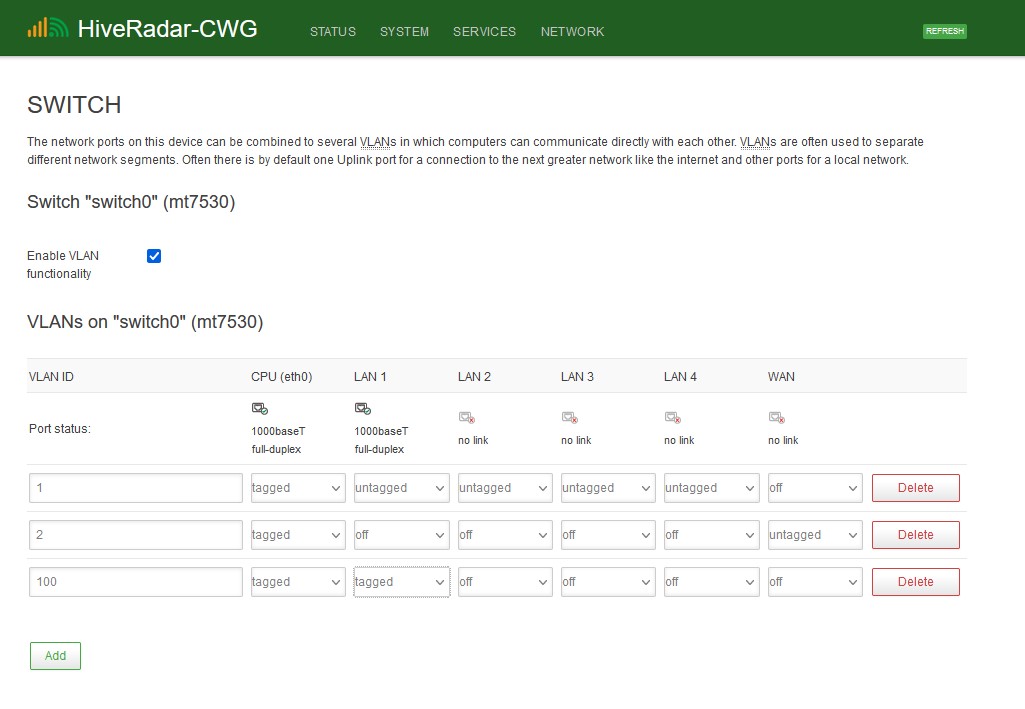 Switch VLAN for Guest Interface
New Hotspot
Visit the wireless hotspot overview page on "Network > Wireless." On the right side of either the 2.4G (b/g/n) or 5.8G (an/ac) hotspots, click the "Add" button.
General Setup
Maintain the "General Settings" without any alterations. These frequency modes, channels, bandwidth, and transmit power settings are linked to the primary WiFi hotspot.
Interface Configuration
Scroll down to the "Interface Configuration"
-
Mode: Leave it unchanged. The Mode should be set to "Access Point".
-
ESSID: Customize your Guest WiFi's hotspot name—e.g., Guest-WiFi-V5.
-
Password: Navigate to the "Wireless Security" tab to choose the Encryption type and enter the WiFi password into the "Key" field.
-
Click the "Save" button. Avoid clicking the "Save & Apply" button, as it will trigger a complete reboot of the WiFi function.
After returning to the wireless overview page, select the "Edit" button adjacent to the recently added Guest-WiFi-V5. Within the "Network" category, generate a new network labeled "guest." Subsequently, press the "Save & Apply" button to initiate a WiFi function reboot.
Go to the interface overview page under "Network > Interfaces" and click the "Edit" button on the "Guest" interface. Choose "Static Address" on the protocol, and click the "Switch Protocol" button.
Enter "192.168.100.1" as the IPv4 address and choose "255.255.255.0" for the IPv4 netmask. Save the settings by clicking "Save & Apply."
Note: Keep the DHCP Server section below enabled. Disabling the DHCP server will result in the Guest interface no longer assigning local IPs to guest devices.